
| Download the PDF User Guide | ||
|
|
||
Historian can automatically scan for recognized faces when you import new images into the software.
When you import new images using any method, perform the following steps:
1. Click Import Options from the importing dialog.

2. The Import Options dialog box displays. Click Run Facial recognition on imported images.
Note: This option is only available if facial recognition is available in the vault. To learn more, refer to Turn on Facial Recognition.
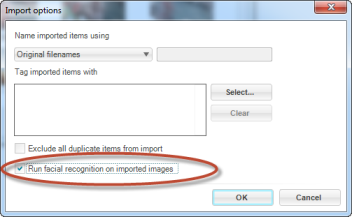
3. Click OK to save your changes and continue importing your images. Facial recognition will run as the items are imported into your vault.
Tip: Historian may occasionally miss a face. There are several reasons for this, including
In these cases, you'll need to manually add the missing face.
| © 2005-2013 Panstoria, Inc. |
|